
BobWeb Address Autocomplete
Autocomplete addresses in Contact Form 7, WooCommerce, Gravity Forms, Fluent Forms en WP Forms. Uses Openstreetmap or Google Maps.
One time payment & money back guarantee
1 site license
This WordPress plugin autocompletes addresses in your contact form or WooCommerce checkout. Works with Contact Form 7, Fluent Forms, WP Forms and Gravity Forms.
Installing the Plugin
When you buy the plugin, you'll get a zip file and a license key. Below are the steps on how to install it.
Or watch this 45s video on YouTube.
- In your WordPress admin dashboard, go to plugins and click on add plugin.
- On the next screen, click on "Upload Plugin" at the top of that screen.
- Select the zip you received from your computer and upload it.
- Click on the Install Now button.
- Click on the Activate Plugin button.
- Click on the settings link under the plugin's name in the plugins screen.
- Paste in your license key and click on Activate License.
Plugin settings
After you've activated your license, the plugin settings will appear.
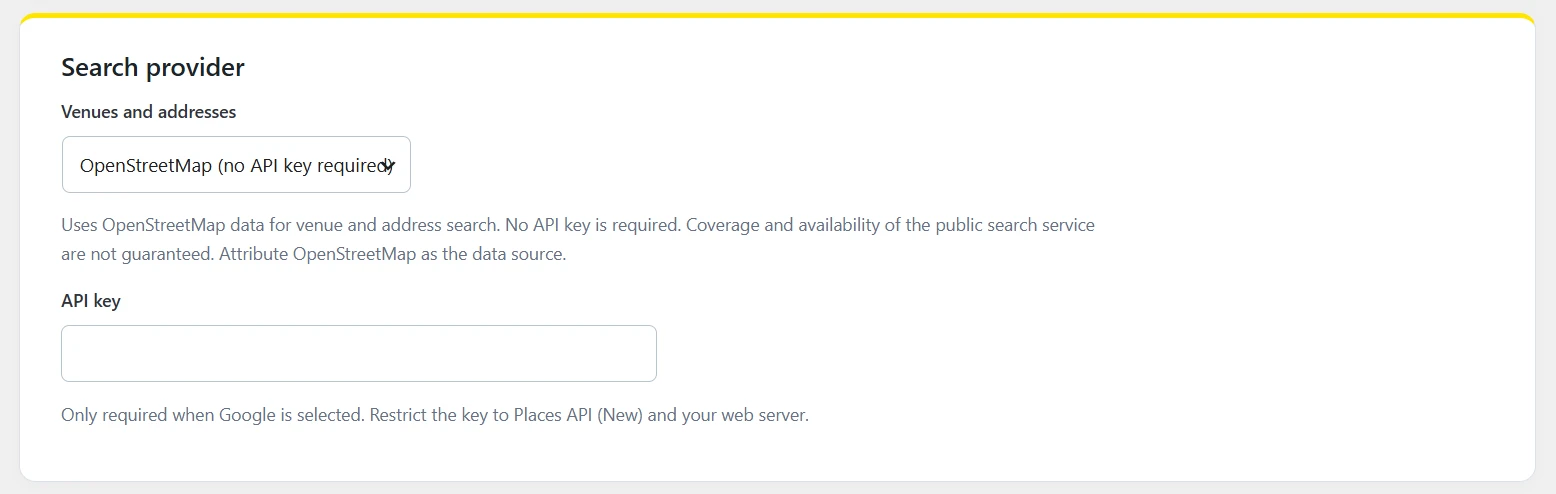
Choosing the Adress AutoComplete search provider: OpenStreetMaps (default) of Google Maps
In the first section of the plugin settings, you can set which search provider you want to use to autocomplete the addresses. By default, OpenStreetMaps is selected, since that doesn't require an API key like Google does. Under the hood, OpenStreetMaps is coupled with Photon so users can also search on the location name / point of interest if they don't know the address.
Google Maps probably provides even better results in most cases, so that's why you have the option to use that as well. But Google Maps requires an API key, which has to be linked to a Google account that has billing enabled.
Typography Settings
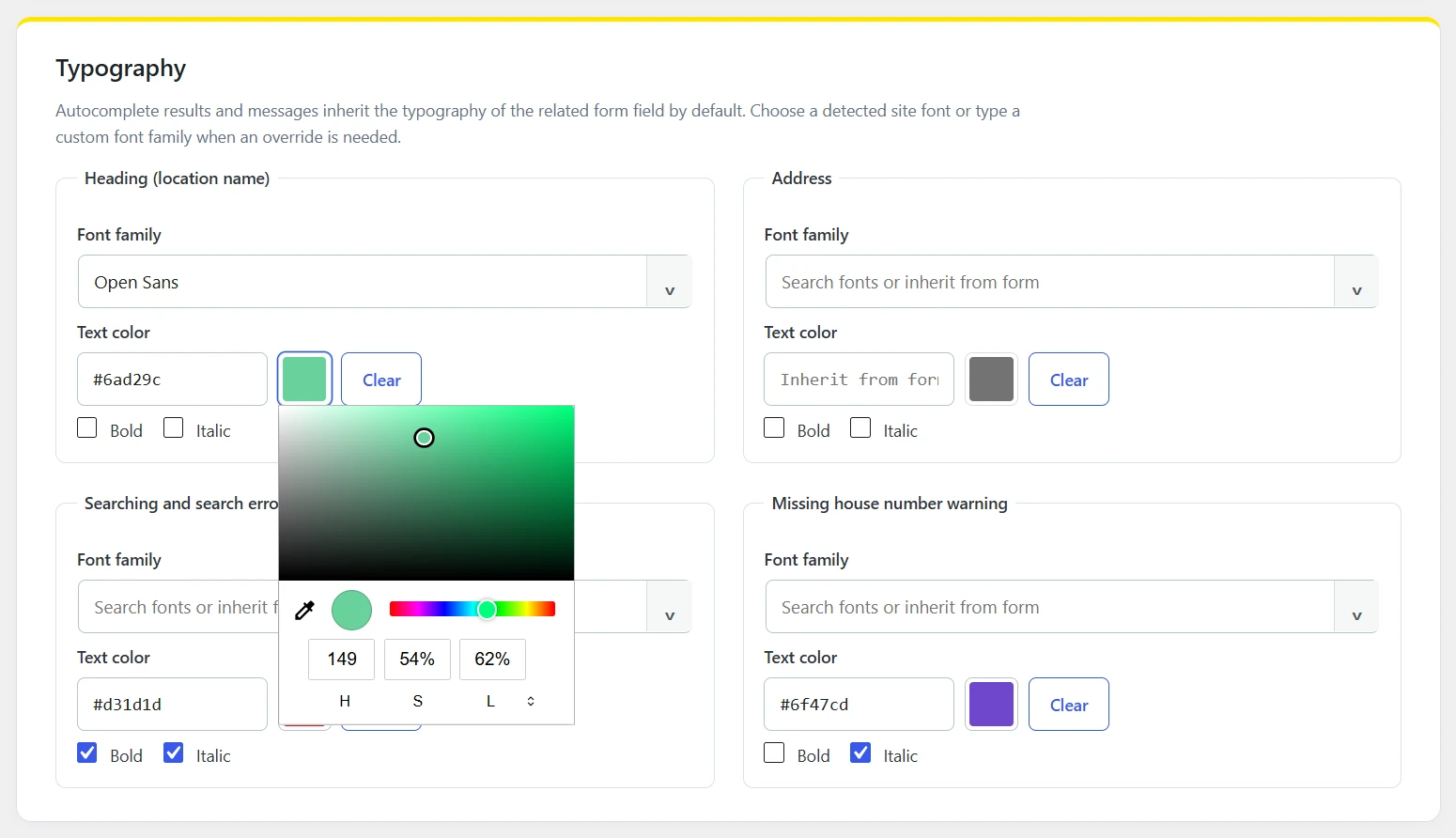
In the second section, you'll find typography settings. The plugin will try to automatically inherit your form styles, but you can set typography manually here.
You can set typography for:
- The heading (location / point of interest name)
- The address
- Searching and search error messages
- Missing house number warning (the plugin will detect and warn if there's an address without a house number selected).
You have the following typography options:
- Font Family: The plugin will auto detect which fonts are installed on your site and you can choose them from a (searchable) dropdown, or typ in a font family manually.
- Color: enter the code manually or use the color picker. You can use HEX, RGB or HSL.
- You can make the text bold or italic.
Form Field Mapping
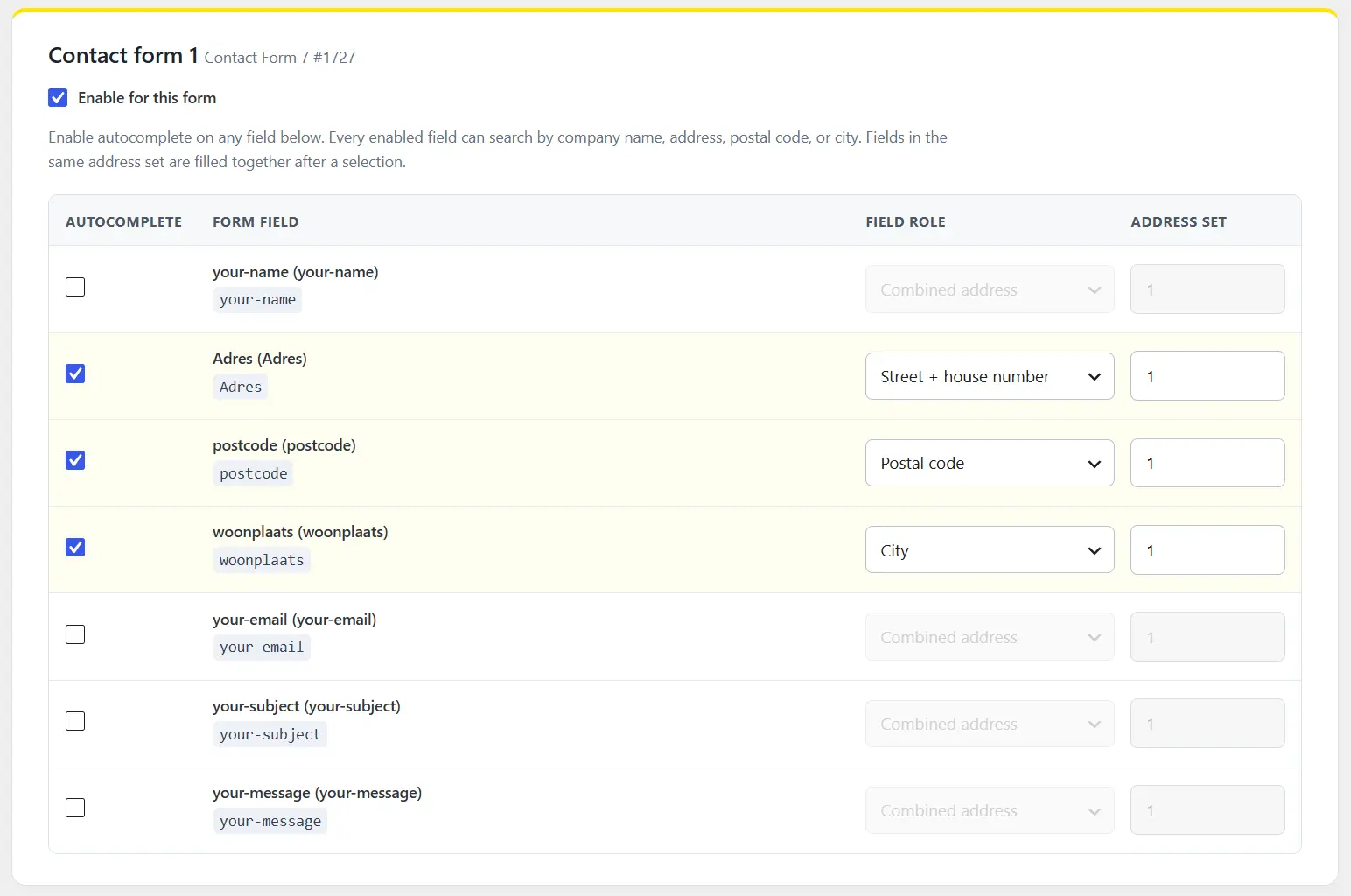
The form will auto detect which forms (or WooCommerce) are installed on your site, and which fields every form has. Just check the box for a certain field to map it. Checking any field will also automaticcaly check the "enable for this form" box.
The plugin will automatically map the field to the most logical option, but you can override that manually too. You can choose from the following options:
- Combined address : Choose this option if you don't have separate address fields, just 1 field for "location" of "venue". This field will hold all address details.
- Company / Venue : The company / venue name.
- Street + House number
- Postal code
- City
- Country
The mapping will only affect how the data is saved in your form; on the front-end, the user can search for anything in any field. So if the user types in an address in the "company" form field, it will just work. Or the company name in the postal code field etcetera. The form will automatically map the found data to the right fields.
For WooCommerce, you can map both the billing and shipping fields.
Save changes
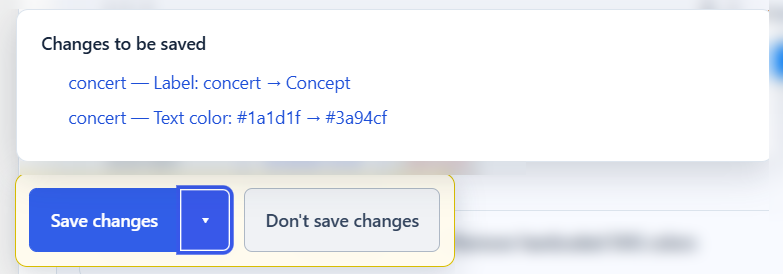
When you change any setting, a Save changes button appears in the left bottom corner. If you click the arrow next to the save button, it will give you an overview of which settings will be saved. Click on any of the items to scroll to that specific setting. Click on the "Don't save changes" button to not save any of the changes.
Deactivate your license
If you want to deactivate your license so you can use it on another site, you can do that at the bottom of the settings screen.
