BobWeb Plugins

BobWeb Address Autocomplete

Autocomplete addresses in Contact Form 7, WooCommerce, Gravity Forms, Fluent Forms en WP Forms. Uses Openstreetmap or Google Maps.

€ 79

One time payment & money back guarantee
1 site license

This WordPress plugin autocompletes addresses in your contact form or WooCommerce checkout. Works with Contact Form 7, Fluent Forms, WP Forms and Gravity Forms.

Installing the Plugin

When you buy the plugin, you'll get a zip file and a license key. Below are the steps on how to install it.
Or watch this 45s video on YouTube.

  1. In your WordPress admin dashboard, go to plugins and click on add plugin.
  2. On the next screen, click on "Upload Plugin" at the top of that screen.
  3. Select the zip you received from your computer and upload it.
  4. Click on the Install Now button.
  5. Click on the Activate Plugin button.
  6. Click on the settings link under the plugin's name in the plugins screen.
  7. Paste in your license key and click on Activate License.

Plugin settings

After you've activated your license, the plugin settings will appear.

Choosing the Adress AutoComplete search provider: OpenStreetMaps (default) of Google Maps

In the first section of the plugin settings, you can set which search provider you want to use to autocomplete the addresses. By default, OpenStreetMaps is selected, since that doesn't require an API key like Google does. Under the hood, OpenStreetMaps is coupled with Photon so users can also search on the location name / point of interest if they don't know the address.

Google Maps probably provides even better results in most cases, so that's why you have the option to use that as well. But Google Maps requires an API key, which has to be linked to a Google account that has billing enabled.
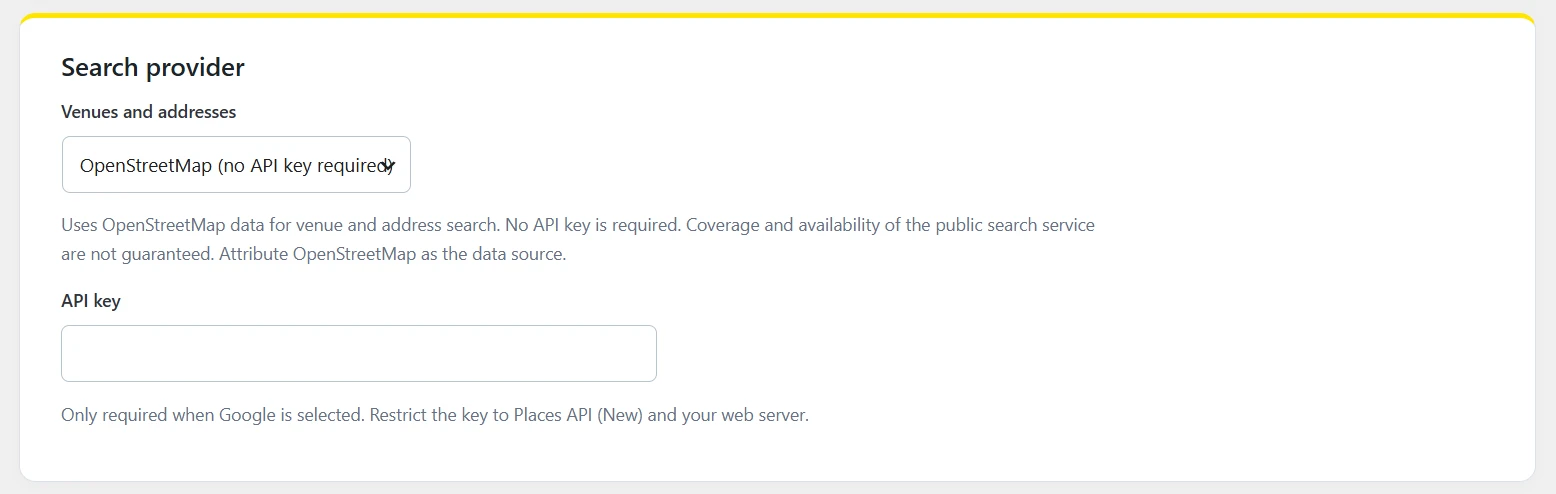
Choosing the Adress AutoComplete search provider: Openstreetmaps (default) of Google Maps

Typography Settings

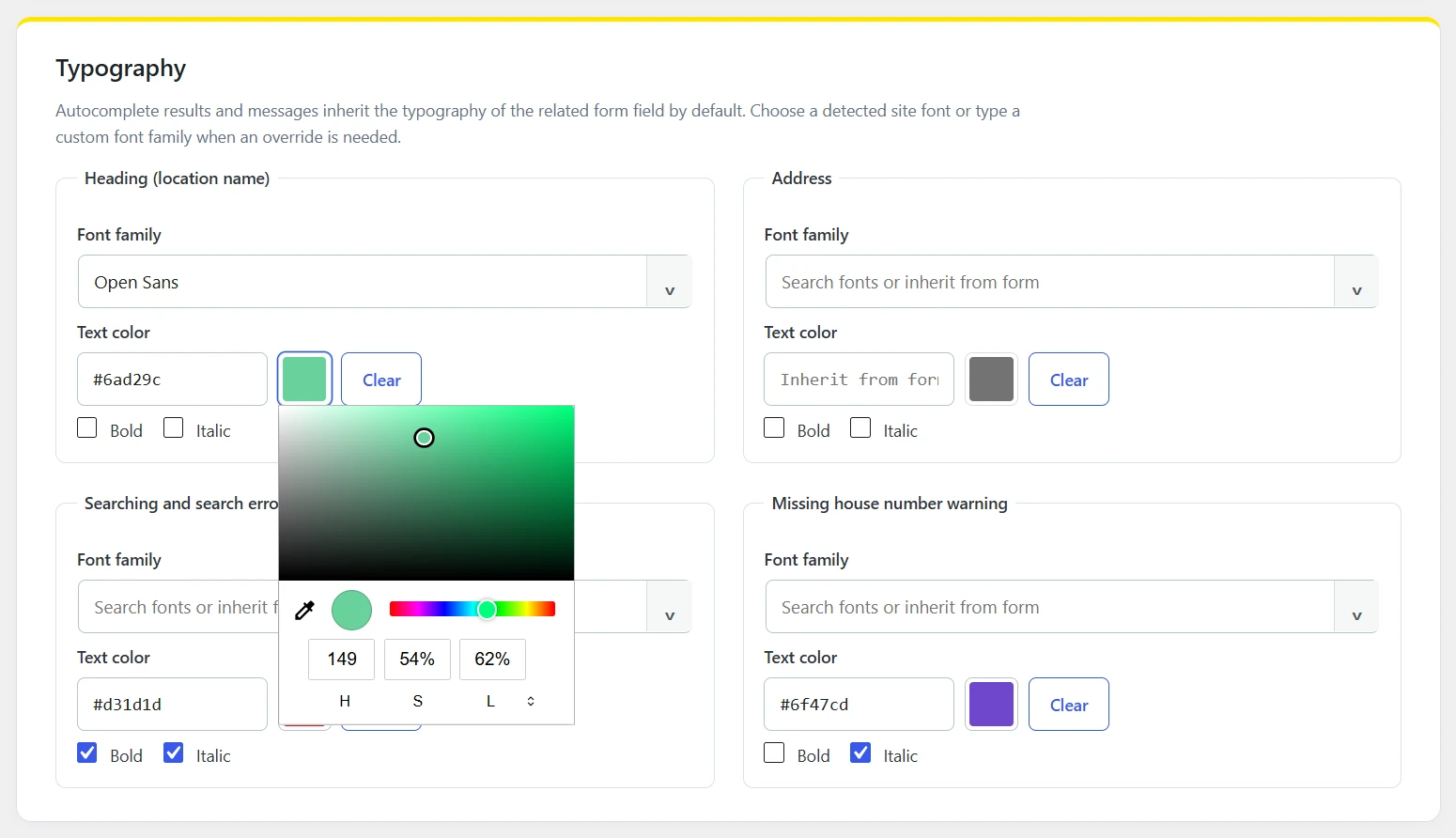
In the second section, you'll find typography settings. The plugin will try to automatically inherit your form styles, but you can set typography manually here.

You can set typography for:

  • The heading (location / point of interest name)
  • The address
  • Searching and search error messages
  • Missing house number warning (the plugin will detect and warn if there's an address without a house number selected).

You have the following typography options:

  • Font Family: The plugin will auto detect which fonts are installed on your site and you can choose them from a (searchable) dropdown, or typ in a font family manually.
  • Color: enter the code manually or use the color picker. You can use HEX, RGB or HSL.
  • You can make the text bold or italic.
BobWeb Address Autocomplete plugin - Typography Settings

Form Field Mapping

The form will auto detect which forms (or WooCommerce) are installed on your site, and which fields every form has. Just check the box for a certain field to map it. Checking any field will also automaticcaly check the "enable for this form" box.

The plugin will automatically map the field to the most logical option, but you can override that manually too. You can choose from the following options:

  • Combined address : Choose this option if you don't have separate address fields, just 1 field for "location" of "venue". This field will hold all address details.
  • Company / Venue : The company / venue name.
  • Street + House number
  • Postal code
  • City
  • Country

The mapping will only affect how the data is saved in your form; on the front-end, the user can search for anything in any field. So if the user types in an address in the "company" form field, it will just work. Or the company name in the postal code field etcetera. The form will automatically map the found data to the right fields.

For WooCommerce, you can map both the billing and shipping fields.
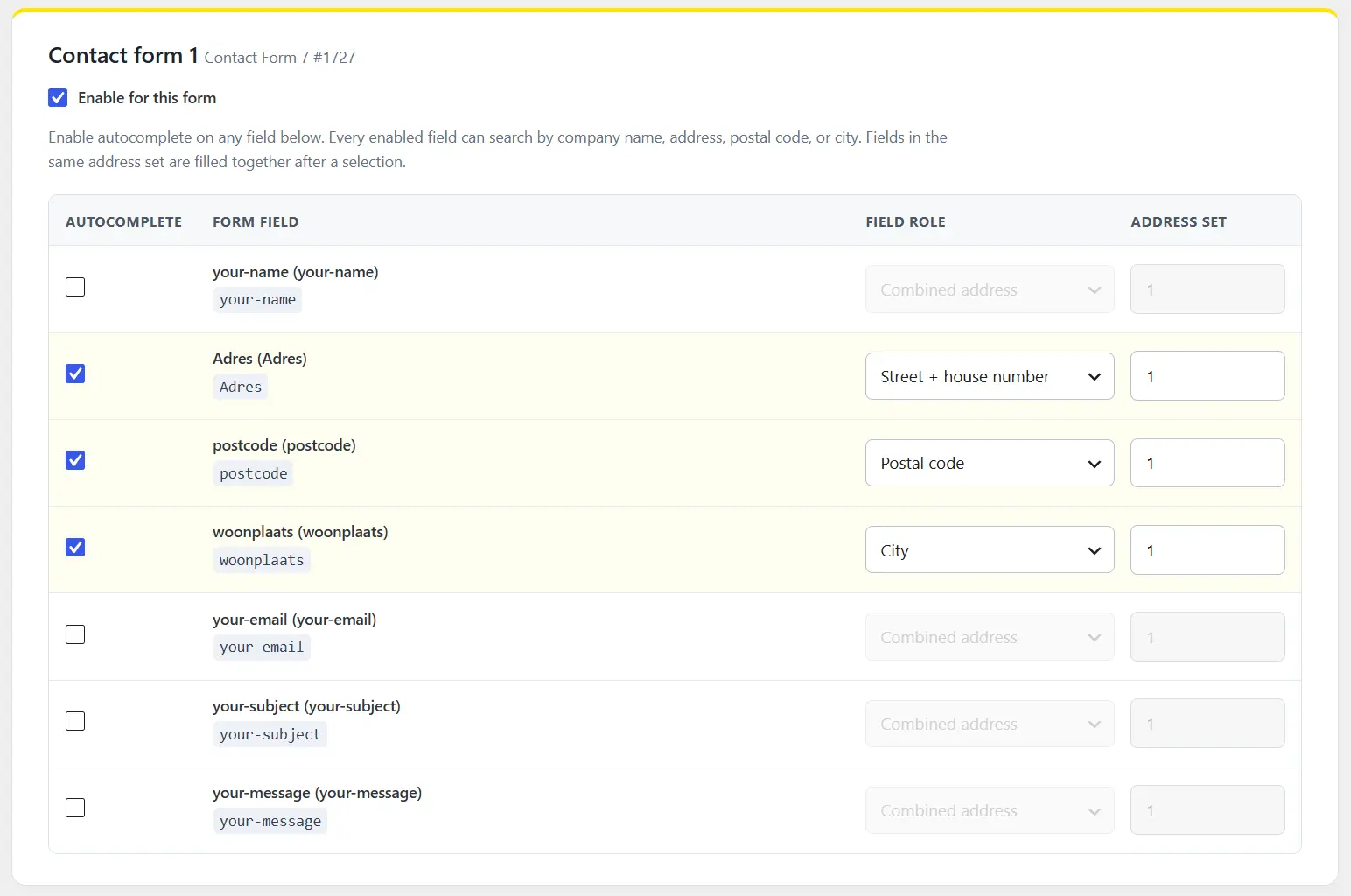
BobWeb Address Autocomplete plugin: Form Field Mapping

Save changes

When you change any setting, a Save changes button appears in the left bottom corner. If you click the arrow next to the save button, it will give you an overview of which settings will be saved. Click on any of the items to scroll to that specific setting. Click on the "Don't save changes" button to not save any of the changes.
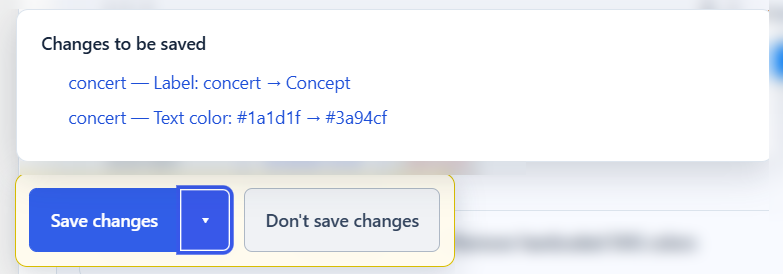
Save changes in BobWeb plugins

Deactivate your license

If you want to deactivate your license so you can use it on another site, you can do that at the bottom of the settings screen.

Deactivate the license for a BobWeb plugin so you can reuse it on another site

This plugin is available in the following languages

  • English
  • Nederlands
  • Deutsch
  • Français
  • Español
  • Italiano
  • Português
  • Polski
  • Dansk
  • Svenska
  • Norsk
  • Suomi
  • Čeština
  • Slovenčina
  • Magyar
  • Română
  • Ελληνικά
  • Türkçe
  • 日本語
  • 中文
  • One time payment

    no recurring costs, free updates

  • 30 days money back guarantee

    get a full refund if it's not for you

  • Great documentation

    video demo and written docs

Changelog

1.3.7 — 01-10-2026

  • Renamed the no-key search provider in Settings to “OpenStreetMap (no API key required)” and removed PDOK from the provider description.

1.3.6 – 30-09-2026

  • Renamed Message typography to Typography.
  • Added separate typography controls for autocomplete result headings (location names) and address lines.
  • Added a searchable font-family combobox populated from detected WordPress/theme fonts while keeping custom font-family input available.
  • Changed English UI wording from Postcode to Postal code.

1.3.5 – 24-09-2026

  • Improved WooCommerce Checkout Blocks support: selectable suggestions, React-compatible field updates, block field detection, and hidden address/postal-code/city placeholders.

1.3.4 — 24-09-2026

  • Automatically enable a form when at least one autocomplete field is selected.
  • Redirect to the plugin settings after the first manual activation only; updates and later reactivations do not redirect.

1.3.3 — 24-09-2026

  • Moved the license panel to the bottom of the settings page when a valid license is active.

1.3.2 — 24-09-2026

  • Hide all plugin settings and form mappings until a valid BobWeb license is activated.
  • Keep the license panel available so the plugin can be activated.

1.3.1 — 24-09-2026

  • Fixed the missing house number warning so it is only evaluated after selecting an autocomplete result.
  • Prevented duplicate house number warnings and hide an existing warning as soon as the user starts a new search.

1.3.0 — 24-09-2026

  • Added checkbox-based field detection and address sets for split address fields.
  • Added WooCommerce checkout/address form support.
  • Every enabled field can search company names, addresses, postcodes and cities.
  • Improved translated Clear button alignment.

1.2.2

  • Improved typography color controls with an aligned hex field, clickable color swatch and clear button.

1.2.1 — 24-09-2026

  • Added a clickable WordPress color picker to both message typography color settings while keeping the HEX input editable.

1.1.1 — 24-09-2026

  • Search status, search errors, and house-number warnings inherit typography from the related form field, including custom CSS.
  • Added separate optional font family, text color, bold, and italic overrides for search and house-number messages.

1.1.0 — 24-09-2026

  • English is the default for the plugin name, settings, form messages, license interface, and release notes.
  • Added translations for 20 languages, including translated release notes for packaged versions.
  • Existing installations are recognized by their saved form configuration, independently of the website domain.

1.0.0 — 24-09-2026

  • Added BobWeb branding to the settings screen, including its license card.
  • Added BobWeb license validation and verified automatic updates.
  • Kept existing configured installations working during license onboarding.

0.7.0

  • Removed a forced Dutch language parameter from Photon requests and documented its API path.
  • Sent recognizable Dutch street searches to PDOK first in keyless mode.
  • Checked the house number after selecting a combined-field suggestion instead of while typing.

0.6.0

  • Sent Dutch postal code searches in the combined field to PDOK regardless of provider.
  • Displayed cached suggestions immediately, with a searching status for new requests.
  • Reduced the search delay.

0.5.0

  • Prevented duplicate searches and suggestion lists when one field has multiple mappings.
  • Preserved venue name and full address in a single field after selection.
  • Further shortened the input delay.

0.4.0

  • Ensured a single field receives the venue name and full address even with duplicate mappings.
  • Applied a per-form search limit with a fixed time window.

0.3.0

  • Added a single-field mapping for venue name and full address.
  • Replaced Google Text Search with Google Autocomplete sessions and faster suggestions.
  • Displayed Photon HTTP or connection errors for troubleshooting.

0.2.0

  • Added keyless searches using PDOK and Photon/OpenStreetMap; Google became optional.

0.1.0

  • Initial standalone Fluent Forms extension with live venue, address, and postcode suggestions.
  • Added form-specific mapping, PDOK postcode lookup, Google Places, and house-number warnings.

Frequently Asked Questions

Yes, but don't expect huge new features every month. In fact, don't expect regular updates at all. These plugins are focused on one specific thing and do that really well, and as long as they keep working well there's probably no reason to update them.

As you can see in the changelog published on every plugin's detail page, most plugins get a lot of updates in the first few days and weeks after their initial release, because that's when I test them intensively and add and polish a lot of stuff. But once a plugin is how I want it, updates are rare.

However, if there is an update available, you can just update via the plugin overview screen, just like any other plugin.

There's a video demo and extensive documentation on the detail page for each plugin.

However, personal support is NOT included. For that price, I simply can't offer personal support (except for things like licensing problems).

That's why I offer a 30 days money back guarantee; if you can't get the plugin to work the way you want, I'll just refund you.

If you REALLY want support, or customization, you can buy a pre-paid credit bundle on my main website.

If the plugin isn't for you, you can get a refund within 30 days after you've purchased it.

Just fill in the form on this page, choose "refund" and provide the details asked (which plugin, your name and your e-mail address).

However, you should know the license will be revoked in that case, and the plugin will not work without a valid license.

Sure, you can absolutely do that too. But it took me many hours to get these plugins perfect & up to my standards, and I speak the language of web so I know how to explain exactly what I want to the AI ;-) Do you?

Moreover, these plugins are battle tested on real world websites, with many added features and fixes over time.

And at these one time prices, with free updates… I hope you value your time more than that ;-)